Backup your pictures 💾
Backing Up a NAS via SSH and rsync
A practical guide to safely backing up large NAS file sets via SSH and rsync, including why some external USB hard drives slow down dramatically due to SMR technology.
NAS (Network Attached Storage) is a convenient solution for storing pictures, videos, and all your other files. The NAS device is typically configured as RAID-1, utilizing two disks so the system can continue operating if one disk fails, thereby improving availability. It connects to your local network, providing reliable and accessible storage, but it is not a backup.
Backing up files from a NAS device is very important to ensure data integrity and availability.
Many NAS systems, such as my Synology NAS, come equipped with backup software like Hyper-Backup. Unfortunately, this software tends to become slower over time during long backup runs, especially with very large file sets.
Using PuTTY, a popular SSH client, and simple Linux commands, you can efficiently perform backups and verify them directly on the NAS. Here is a step-by-step guide.
Prerequisite
NAS devices typically feature USB ports, allowing you to connect an external hard drive of the required size directly to the NAS via USB. External drives are available in two main types: SSD (Solid State Drives) and HDD (Hard Disk Drives with spinning disks). I am using HDDs because of their long-term data retention capabilities, but SSDs are faster and maybe perfect for frequent short term backups.
The drive connects to the system with a path like /volumeUSB1/usbshare. Simply check with the cd and dir command.
On Synology systems, user data is typically located under /volume1, which will be used as the source path in the following examples.
I recommend formatting the drive with NTFS. On large volumes, exFAT often uses very large allocation units, which can waste significant space when storing many small files.
Note on SMR-based external hard drives
Many modern 2.5" external USB hard drives use Shingled Magnetic Recording (SMR). With SMR, write performance may appear fast at first, because new data is written into a small sequential write area. Once this area fills up, the drive must internally reorganize and rewrite entire zones to place the data permanently. This consolidation happens in the background and can take a long time, during which the drive remains busy and write speeds drop significantly.
This behavior is a direct consequence of how SMR works. SMR increases storage density by partially overlapping adjacent magnetic tracks, similar to roof shingles. Because the write head is wider than the read head, writing a new track overwrites part of the previous one, which prevents individual tracks from being updated independently. To manage this, SMR drives group tracks into zones that are written sequentially. Updating existing data requires a read-modify-rewrite cycle of the full zone, which is handled entirely by the drive firmware in drive-managed SMR and is invisible to the operating system.
As a result, long periods of drive activity and reduced sustained write performance are expected with fragmented or many-file workloads. This behavior affects performance, not data integrity, and does not indicate failing hardware or reduced long-term backup safety.
Step 1: Connect to your NAS using PuTTY
Download and Install PuTTY.
Open PuTTY and enter the IP address of your NAS in the "Host Name (or IP address)" field. Default Port is 22.
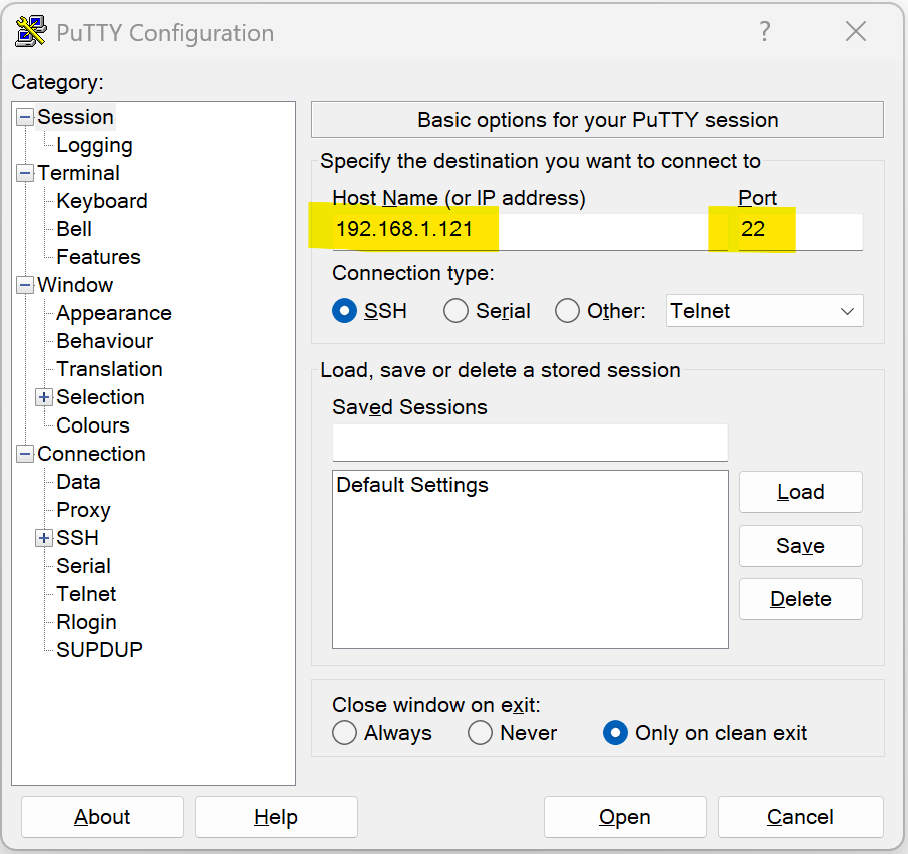
Login: Click "Open" and log in using your NAS credentials. You should now have access to the NAS embedded Linux console.
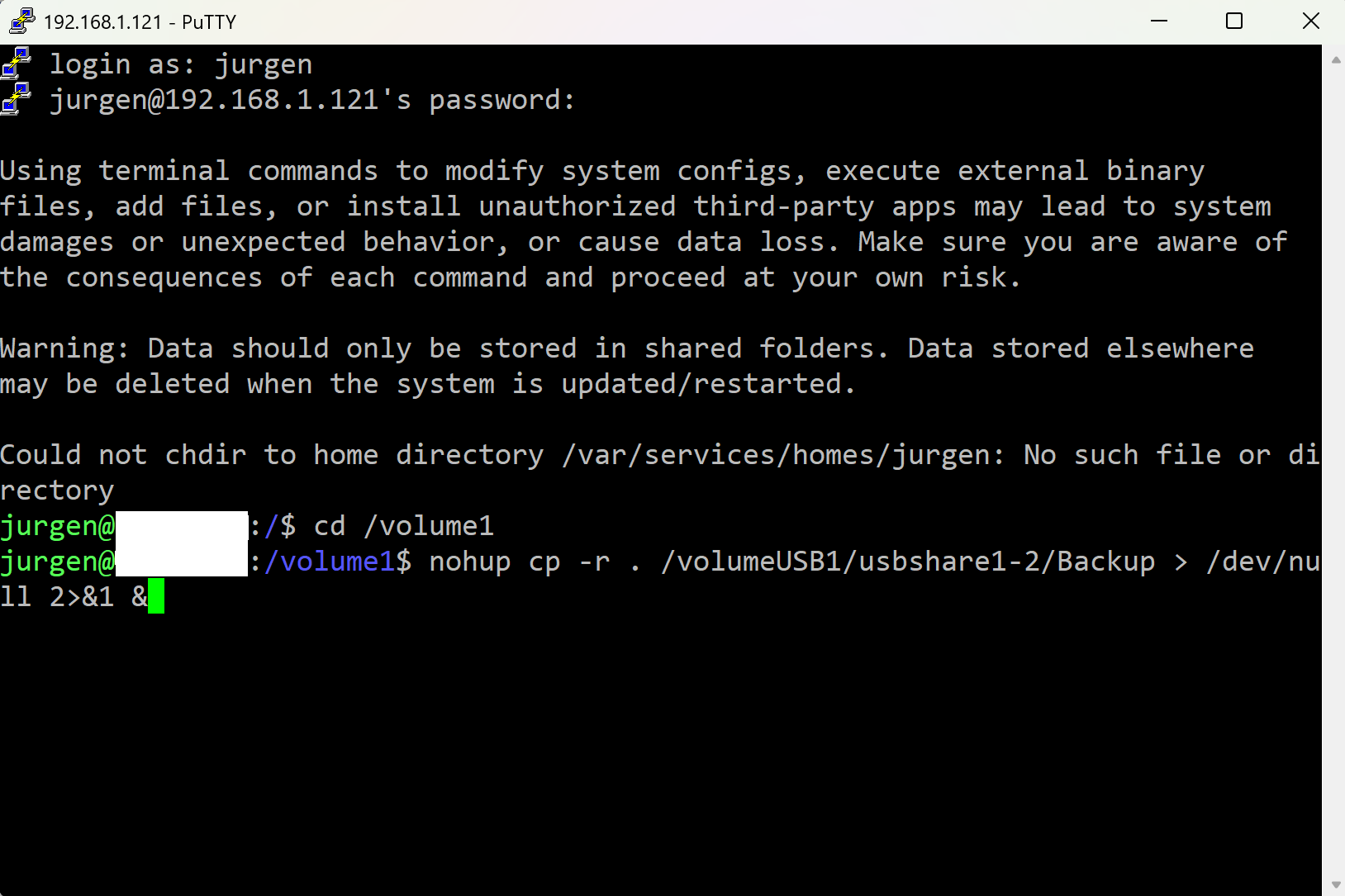
Step 2: Backup Files using the rsync command
The rsync command of the embedded Linux system of the NAS is used to copy files and directories.
To backup files from your NAS to another drive, follow these steps:
Navigate to the Source Directory:
cd /volume1
For large data sets, the copy process can take several days, and the PuTTY terminal may disconnect, closing the command. To prevent this, use the nohup command to keep the process running even if the terminal disconnects.
While commands like screen or tmux can be used to detach from the current terminal session, they are not always available on every system. At least, it is not available on the Synology NAS.
Copy Files to the Backup Location using rsync command with nohup. The rsync command has a visual progress and is a better choice for very large archives than the cp cmd.
Copy folders 2023, 2024, 2025 and "folder with spaces" to the backup folder "Bilder":
nohup rsync -rltD -W --info=progress2 --no-owner --no-group --no-perms --no-times --no-inc-recursive 2023 2024 2025 "folder with spaces" /volumeUSB1/usbshare/Bilder/ &
Note that source directories are specified without a trailing slash so that rsync creates the corresponding directories on the backup drive. Using a trailing slash on the source directory would copy only the contents of the folder and place all files directly into the target directory, flattening the structure. Always verify source and target paths before starting large copy operations.
The nohup command immediately returns and provides a process ID (PID). You can use the ps or htop command to check for this PID if it is still running in later sessions. Use the kill command with this PID to stop the backup.
Use iostat -x 1 to observe disk activity. When running under nohup, progress output can be viewed using cat nohup.out.
For large archives and long-running backups, rsync typically provides better robustness and verification than simple copy commands.
Step 3: Verify the Backup
After the backup has completed, it is important to verify that all files were copied successfully.
A practical and efficient way to do this is to run rsync in dry-run mode. This compares the source and destination and reports which files would still need to be copied, without making any changes:
rsync -rltD --dry-run --ignore-existing /volume1/Archive/Bilder/ /volumeUSB1/usbshare/Bilder/
ℹ️ --ignore-existing ensures that rsync only reports what would be missing, without copying anything again.
ℹ️ --dry-run makes no changes.
ℹ️ This comparison checks file presence and timestamps, which is sufficient for most photo archives.
For very large file sets, use nohup so the verification is not interrupted by a disconnected terminal session:
nohup rsync -rltD --dry-run --ignore-existing Bilder/ /volumeUSB1/usbshare/Bilder/ >verify.log 2>&1 &
Additional quick sanity checks include comparing the number of files and the total size of both directories:
find Bilder -type f | wc -l
find /volumeUSB1/usbshare/Bilder -type f | wc -l
du -sb /volume1/Archive/Bilder
du -sb /volumeUSB1/usbshare/Bilder
Small differences in reported size are normal, but large deviations should be investigated.
Finally, for a strict and exhaustive comparison, the diff command can be used:
diff -qr /volume1/Archive/Bilder /volumeUSB1/usbshare/Bilder
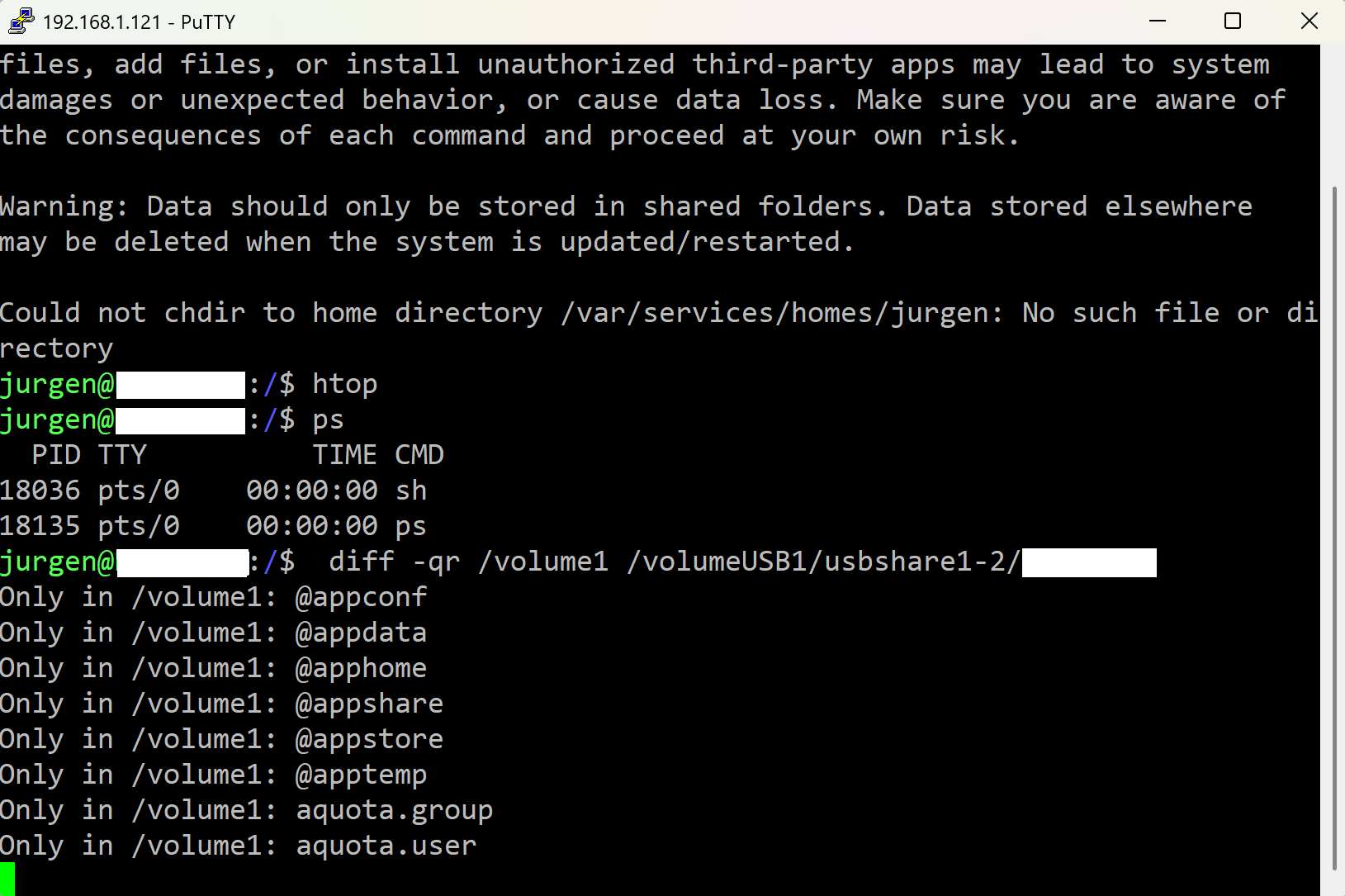
This performs a recursive comparison of the directory trees and may take a long time on large archives. For long-running checks, use nohup and redirect the output to a file for later inspection.
My first digital camera was a Kodak DC-260, and I used 3.5" 💾 for backup.