cPicture

🔍 Suche...
🔍
Alle Begriffe müssen vorkommen (UND), "Phrase" für exakte Treffer, r"regex" für Muster (oder ').
  • cPicture 4.6

    📅 4. April 2025 · updates · ⏱️ 1 min

    cPicture is updated to version 4.6

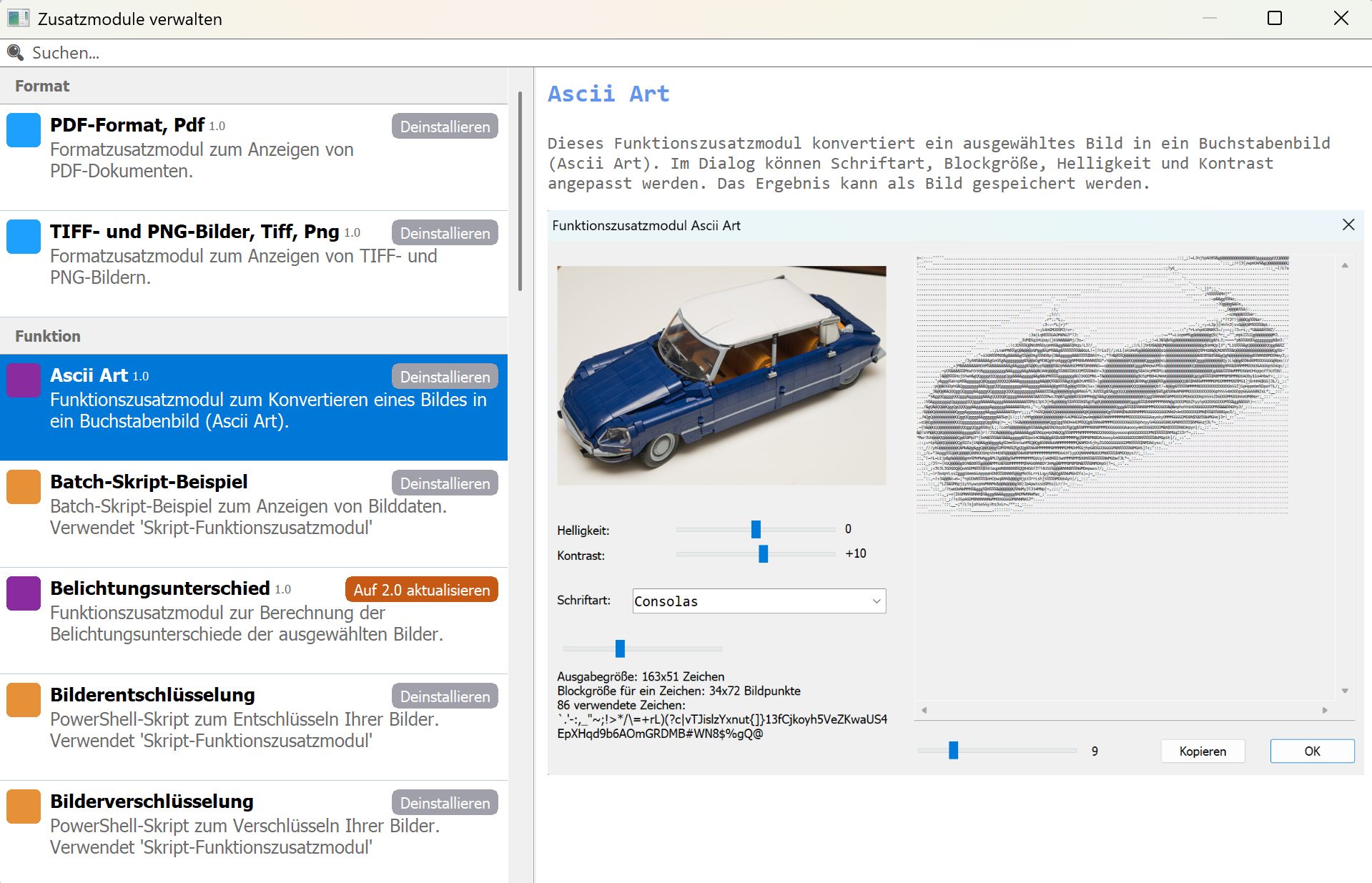
    • Added PDF-Plugin


    • Updated TIFF- and PNG-Plugin to use the latest libtiff and libpng library
    • Maintenance update and minor changes

    Src for plugins is available on github
    Use the function plugin option in cPicture to download the latest format and function plugins.


    cPicture is a portable application consisting of a single .exe file and optional plugin files.

    Download the MSI file to copy the app to a folder or use the 'Check for updates' button in the 'Other' category.

    Download German 64bit Installer MSI
    Download English 64bit Installer MSI
    More languages are available from the cPicture site.
    Alternative download from github

    See the Download Instructions for more details.

    For questions, please mail to: cpicture

  • Script plugin (.bat, .ps1, .py)

    📅 19. Januar 2025 · ⏱️ 5 min

    The script plugins for batch files and powershell files are consolidated into one script plugin, which also adds python script files.
    The new plugin is available from the plugins option in cPicture.
    Note: The old plugins are still valid, but should be removed as they cause duplicate entries (delete cpp_bat_script.dll and cpp_ps1_script.dll in the plugins folder).

    github src

    Example batch script

    @echo OFF
    
    echo file=%1
    echo name=%2
    echo dir=%3
    echo width=%4
    echo height=%5
    echo sequence number=%6 
    echo number of files=%7
    
    REM wait for user to close the console
    pause


    Example PowerShell script

    <#
    .DESCRIPTION
        Example PowerShell script to print the picture data
    
    .NOTES
        This example is using the default cPicture custom data template
        for the $picture_data.cdata value.
        This value can be changed in the Settings (F9).
        The .DESCRIPTION text is used for the menu tooltip.
    #>
    
    # plugin variables
    # Do not remove the leading # of the variable #[...]:
    
    # console=true (default) displays a console, use this option for scripts with text output.
    #[console=true]
    
    # noexit=true keeps the console open, set to 'false' (default) to have the console closed when processing is done. This variable is only used when #[console=true].
    #[noexit=false]
    
    param
    (
        [Parameter(Mandatory=$true)]
        [string]$picture_data_json
    )
    
    # Get the picture data.
    $picture_data_set = ConvertFrom-Json -InputObject $picture_data_json
    
    # Print the number of pictures.
    [int]$size = $picture_data_set.length
    Write-Host "$size picture(s):" -ForegroundColor White
    Write-Host ("-" * 15)
    Write-Host
    
    # Print the picture data.
    [int]$i = 1
    foreach ($picture_data in $picture_data_set) {
        # Example:
        # $picture_data.file   : c:\Bilder\bild1.jpg
        # $picture_data.name   : bild1.jpg
        # $picture_data.dir    : c:\Bilder\
        # $picture_data.width  : 3712
        # $picture_data.height : 5568
    
        # $picture_data.audio        : false
        # $picture_data.video        : false
        # $picture_data.colorprofile : false
        # $picture_data.gps          : N 47° 37' 0,872498" W 122° 19' 32,021484"
        # $picture_data.aperture     : 5.6   # f/5.6
        # $picture_data.shutterspeed : 1250  # 1/1250s
        # $picture_data.iso          : 100
        # $picture_data.exifdate     : 133553225690000000
        # $picture_data.exifdate_str : 19.03.2024 11:49:29
        # $picture_data.model        : NIKON Z 30 
        # $picture_data.lens         : 16-50mm f/3,5-6,3 VR f=44mm/66mm
        # $picture_data.cdata        :  # Configurable with F9
        # name               : Pike-Place-Market-Kreuzung-360x180.jpg
        # dir                : C:\Bilder\
        # size               : 1624x812 Bildpunkte
        # model              : [NIKON Z 30]
        # settings           : 1/1250s ISO 100/21°
        # contains           : Kommentar, XMP, Farbprofil,
        # gps                : N 47° 37' 0,872498" W 122° 19' 32,021484"
        # file_size          : 835 KB (855189 Bytes)
        # file_create_date   : Dienstag, 19. März 2024 um 11:49:29 Uhr
        # file_modified_date : Dienstag, 19. März 2024 um 11:49:29 Uhr
        # exif_date          : Dienstag, 19. März 2024 um 11:49:29 Uhr
    
        [int]$MP = $picture_data.width * $picture_data.height / 1000000
        "Picture '{0}' ({4} of {5}) with {1}x{2} pixel ({3}MP)" -f $picture_data.file, $picture_data.width, $picture_data.height, $MP, $i, $size
        "  name='$($picture_data.name)', dir='$($picture_data.dir)'`n"
    
        # Enumerate all data fields.
        foreach ($data in $picture_data.PSObject.Properties) {
            Write-Host "  $($data.Name)" -ForegroundColor Green -NoNewline
            Write-Host ": " -NoNewline
            Write-Host "$($data.Value)" -ForegroundColor Blue
        }
    
        <# 
            Use ConvertFrom-Json when cdata is a json array to access the data elements.
            Otherwise cdata is arbitrary text and use $picture_data.cdata as a string, for example: Write-Host $picture_data.cdata
        #>
    
        # The default setting for the data is a JSON array matching the tooltip data in cPicture.
        $cdata = ConvertFrom-Json -InputObject $picture_data.cdata
    
        # Example usage:
    
        # Use specific data field.
        Write-Host $cdata.model -ForegroundColor Yellow
    
        # Enumerate all data fields.
        Write-Host "$($cdata.psobject.properties.Value.Count) elements in `$picture_data.cdata:"
        foreach ($data in $cdata.psobject.properties) {
            Write-Host "  $($data.Name)" -ForegroundColor Green -NoNewline
            Write-Host ": " -NoNewline
            Write-Host "$($data.Value)" -ForegroundColor Blue
        }
    
        "-" * 70
    
        $i++
    }
    
    # Use this to pause the console when using the #[console=true] option.
    # Do not use when #[console=false] as the console is not displayed.
    Write-Host "Press any key to continue ..."
    [void]$host.UI.RawUI.ReadKey("NoEcho,IncludeKeyDown")


    Example Python script

    """
    Description: Example python script to print the picture data
    """
    
    # plugin variables
    # Do not remove the leading # of the variable #[...]:
    
    # console=true (default) displays a console, use this option for scripts with text output.
    #[console=true]
    
    # noexit=true keeps the console open, set to 'false' (default) to have the console closed when processing is done. This variable is only used when #[console=true].
    #[noexit=true]
    
    import json
    import sys
    import base64
    
    COLORS = {
        "red": "\033[31m",
        "green": "\033[32m",
        "yellow": "\033[33m",
        "blue": "\033[34m",
        "magenta": "\033[35m",
        "cyan": "\033[36m",
        "white": "\033[37m",
        "reset": "\033[0m"
    }
    
    def colored_text(text, color):
        return f"{COLORS.get(color, COLORS['reset'])}{text}{COLORS['reset']}"
    
    # Get the picture data.
    def picture_data(base64_string):
    
        # Decode base64 string
        json_string = base64.b64decode(base64_string).decode('utf-8').rstrip('\0')
    
        # Parse JSON string
        data = json.loads(json_string)
    
        # Print the number of pictures.
        print(f"{len(data)} picture(s): {"-" * 15}")
        print()
    
        # Print the picture data for each selected picture.
        for i, item in enumerate(data):
    
            # Example:
            # item["file"]   : c:\Bilder\bild1.jpg
            # item["name"]   : bild1.jpg
            # item["dir"]    : c:\Bilder\
            # item["width"]  : 3712
            # item["height"] : 5568
    
            # item["audio"]        : false
            # item["video"]        : false
            # item["colorprofile"] : false
            # item["gps"]          : N 47° 37' 0,872498" W 122° 19' 32,021484"
            # item["aperture"]     : 5.6   # f/5.6
            # item["shutterspeed"] : 1250  # 1/1250s
            # item["iso"]          : 100
            # item["exifdate"]     : 133553225690000000
            # item["exifdate_str"] : 19.03.2024 11:49:29
            # item["model"]        : NIKON Z 30 
            # item["lens"]         : 16-50mm f/3,5-6,3 VR f=44mm/66mm
            # item["cdata"]        :  # Configurable with F9
    
            print(colored_text(f"Picture {i+1}:", "yellow"))
    
            mp = int(item["width"] * item["height"] / 1000000)
            print(f"Picture '{item["file"]}' ({i+1} of {len(data)}) with {item["width"]}x{item["height"]} pixel ({mp}MP)")   
            print(f"  name='{item["name"]}', dir='{item["dir"]}'")
            print()
    
            for key, value in item.items():
                print(colored_text(f"  {key}", "green"), end="")
                print(": ", end="")
                print(colored_text(f"{value}", "cyan"))
            print()
    
            # Use specific cdata field.
            element_name = "Modell"
            if 'cdata' in item and len(item['cdata']) > 0:
                element_value = item['cdata'][0].get(element_name, None)
                print(f"Value of cdata element '{element_name}': {element_value}")
            else:
                print(f"cdata element '{element_name}' not found.")
    
            # Print cdata elements if they exist.
            if 'cdata' in item:
                print(f"{len(item['cdata'][0])} elements in cdata")
                for i, cdata_item in enumerate(item['cdata']):
                    for key, value in cdata_item.items():
                        print(colored_text(f"  {key}", "green"), end="")
                        print(": ", end="")
                        print(colored_text(f"{value}", "cyan"))
    
            print("-" * 70)
    
    if __name__ == "__main__":
        if len(sys.argv) == 2:
            picture_data(sys.argv[1])


  • cPicture 4.5

    📅 5. Januar 2025 · updates · ⏱️ 1 min

    cPicture is updated to version 4.5

    • Added integrated panoramic viewer.


    • Macro support to execute a series of commands on the selected pictures.

      # macro to resize, delete picture data and rotate
      resize-2000x2000
            resize 2000 2000
            delete_picture_data
            transform rotate_right


    • Adding 'Clipboard' plugin to copy the selected image to the clipboard for pasting into another application.

    cPicture is a portable application consisting of a single .exe file and optional plugin files.

    Download the MSI file to copy the app to a folder or use the 'Check for updates' button in the 'Other' category.

    Download German 64bit Installer MSI
    Download English 64bit Installer MSI
    More languages are available from the cPicture site.
    Alternative download from github

    See the Download Instructions for more details.

    For questions, please mail to: cpicture

  • cPicture 4.4

    📅 21. Dezember 2024 · updates · ⏱️ 1 min

    cPicture is updated to version 4.4

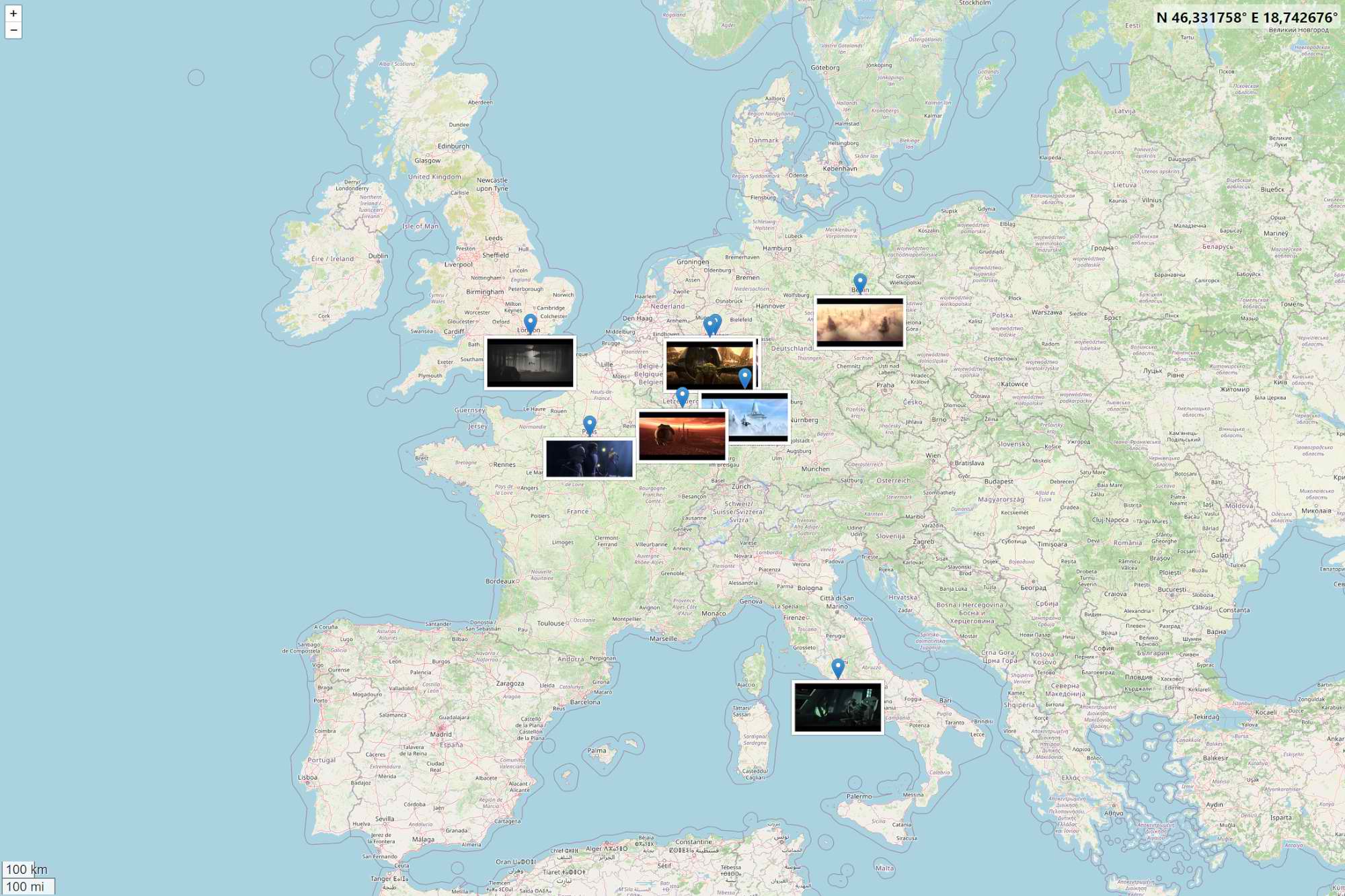
    • Replace GPS BingMap with the OpenStreetMap. In Summer 2025 the previously used Bing map service won't be available anymore and is replaced.


    • New borderless display option with the overview mode.


    • Updated picture search to include EXIF-Data.


    cPicture is a portable App with no installation required.

    Download the ZIP file and copy the cPicture.exe anywhere on your computer to run the app or use the 'Check for updates' button in the 'Other' category.

    Allow download of the App.

    For convenience use the Microsoft Installer to create a program folder and copy the app:
    Download German 64bit Installer MSI      Download English 64bit Installer MSI

    Alternative download from github

    See the Download Instructions for more details.

    For questions, please mail to: cpicture

  • cPicture 4.3

    📅 4. November 2024 · updates · ⏱️ 1 min

    cPicture is updated to version 4.3

    • Support new exiftool package install format. Exiftool used to have one executable tool in the package, but changed it to have a launcher app along with a ton of library files.
    • Mitigated random script error for the GPS map preview picture display. Please note that in summer 2025 the currently used Bing map service won't be available anymore and has to be replaced. Requires upcoming code changes in cPicture.
    • Added option to set GPS map preview picture size:


    cPicture is a portable App with no installation required.

    Download the ZIP file and copy the cPicture.exe anywhere on your computer to run the app or use the 'Check for updates' button in the 'Other' category.

    Allow download of the App.

    For convenience use the Microsoft Installer to create a program folder and copy the app:
    Download German 64bit Installer MSI      Download English 64bit Installer MSI

    Alternative download from github

    See the Download Instructions for more details.

    For questions, please mail to: cpicture

← Neuere Beiträge Seite 2 von 14 Ältere Beiträge →

Blog-Übersicht Chronologisch

KATEGORIEN

updates • Uncategorized


Erstellt mit BitBlog!